Windows MobaXterm
On windows you need to install an X-server and you get proper ssh support with it. Mobatek has a nice free edition which works well.
Download and Install MobaXterm
-
go to http://mobaxterm.mobatek.net you will see the following screen.

-
After clicking
GET MOBAXTERM NOW!you see the follwing screen.
-
Choose the
Home Edition, Download now
-
Choose the
Portable edition
-
Choose the
File saveandOK
-
Choose
Extract
-
Extract to
C:\tools\MobaXterm_v9.4
-
Double Click on
MobaXterm_Personal_9.4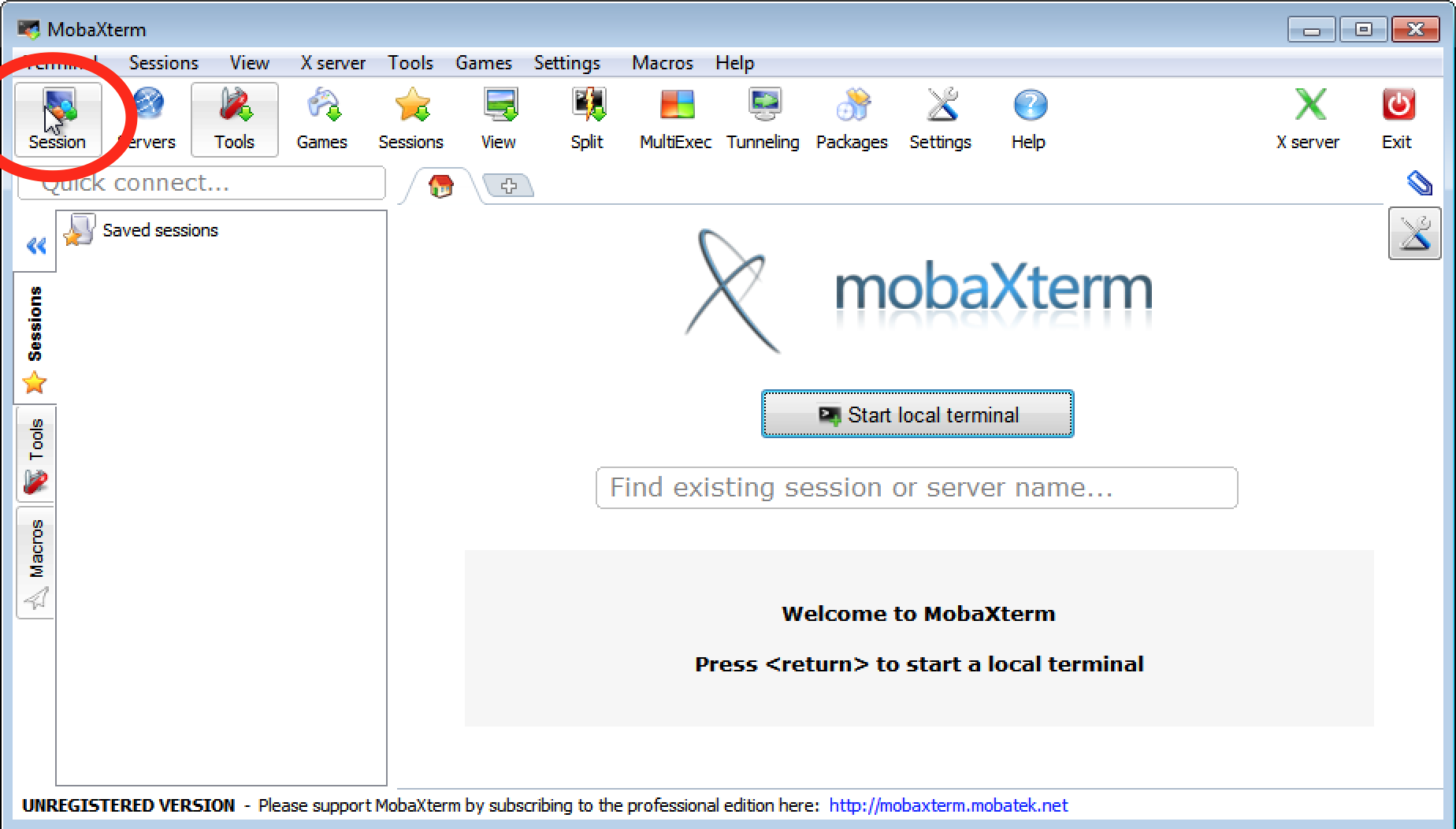
-
You see the MobaXterm start screen now.
-
You can click on
Start a new remote session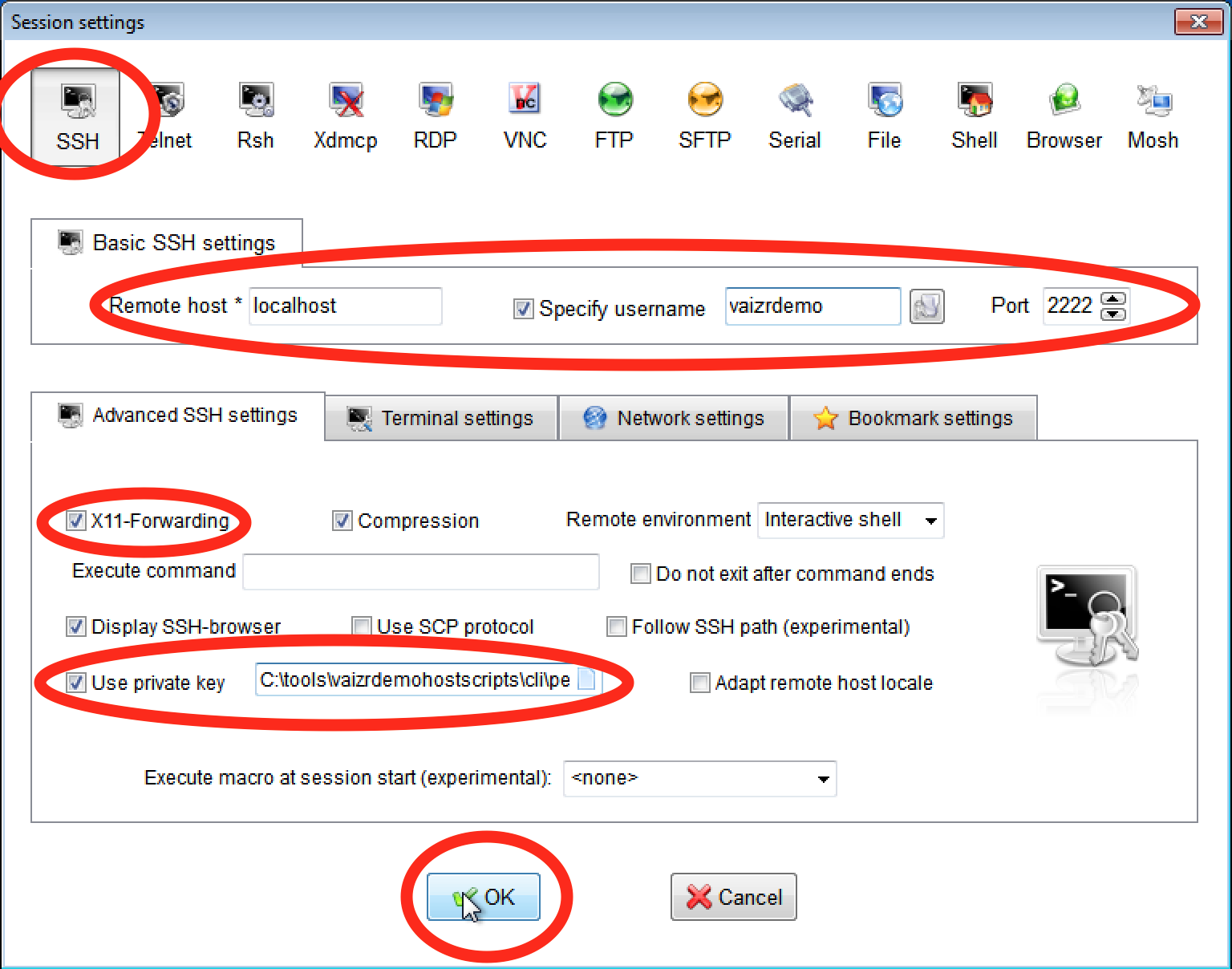
-
And Open the
Advanced SSH settingsyou see the session start screen. -
You can logon with a password
vaizrdemoor with a private key, in the latter case follow the steps below. A private key is provided in the vaizrdemohostscripts.zip file. -
Here you can also choose to
Use private key -
Unzip the vaizrdemohostscripts.zip file in
C:\TOOLSand the private keys can be found in the..\cli\pemfolder. Choose for the localvirtualmachine thelvmvaizrdemobox.pemfile.
-
In conclusion, in the MobaXterm remote sessionscreen fill in the following values:
- Remote host
localhost vSpecify usernamevaizrdemo- Port
2222 vUse private keyC:\tools\vaizrdemohostscripts\cli\pem\lvmvaizrdemobox.pem
- Remote host
Run SSH
-
Click the OK button as you can see at the above screenshot

-
If you see something like this it's ok
Welcome to Ubuntu 14.04.4 LTS (GNU/Linux 3.13.0-83-generic x86_64) * Documentation: https://help.ubuntu.com/ System information as of Tue Jan 17 08:57:54 UTC 2017 System load: 0.37 Processes: 96 Usage of /: 8.5% of 39.34GB Users logged in: 0 Memory usage: 3% IP address for eth0: 10.0.2.15 Swap usage: 0% Graph this data and manage this system at: https://landscape.canonical.com/ Get cloud support with Ubuntu Advantage Cloud Guest: http://www.ubuntu.com/business/services/cloud New release '16.04.1 LTS' available. Run 'do-release-upgrade' to upgrade to it. vaizrdemo@ubuntu-amd64:~$ -
Check if X-windows is working properly.
-
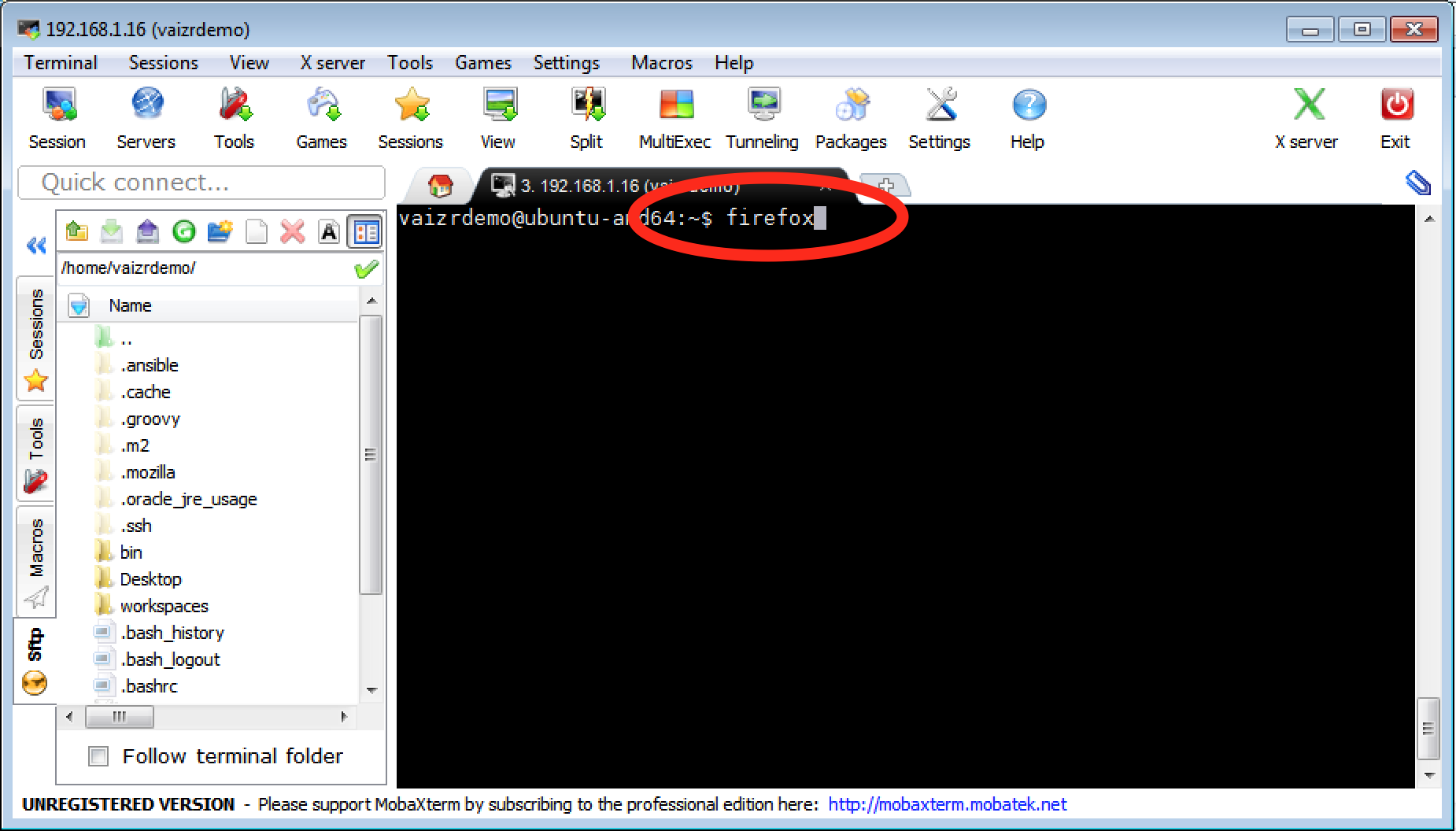
Type after the
$command promptfirefoxand hit return -
$
firefox
-
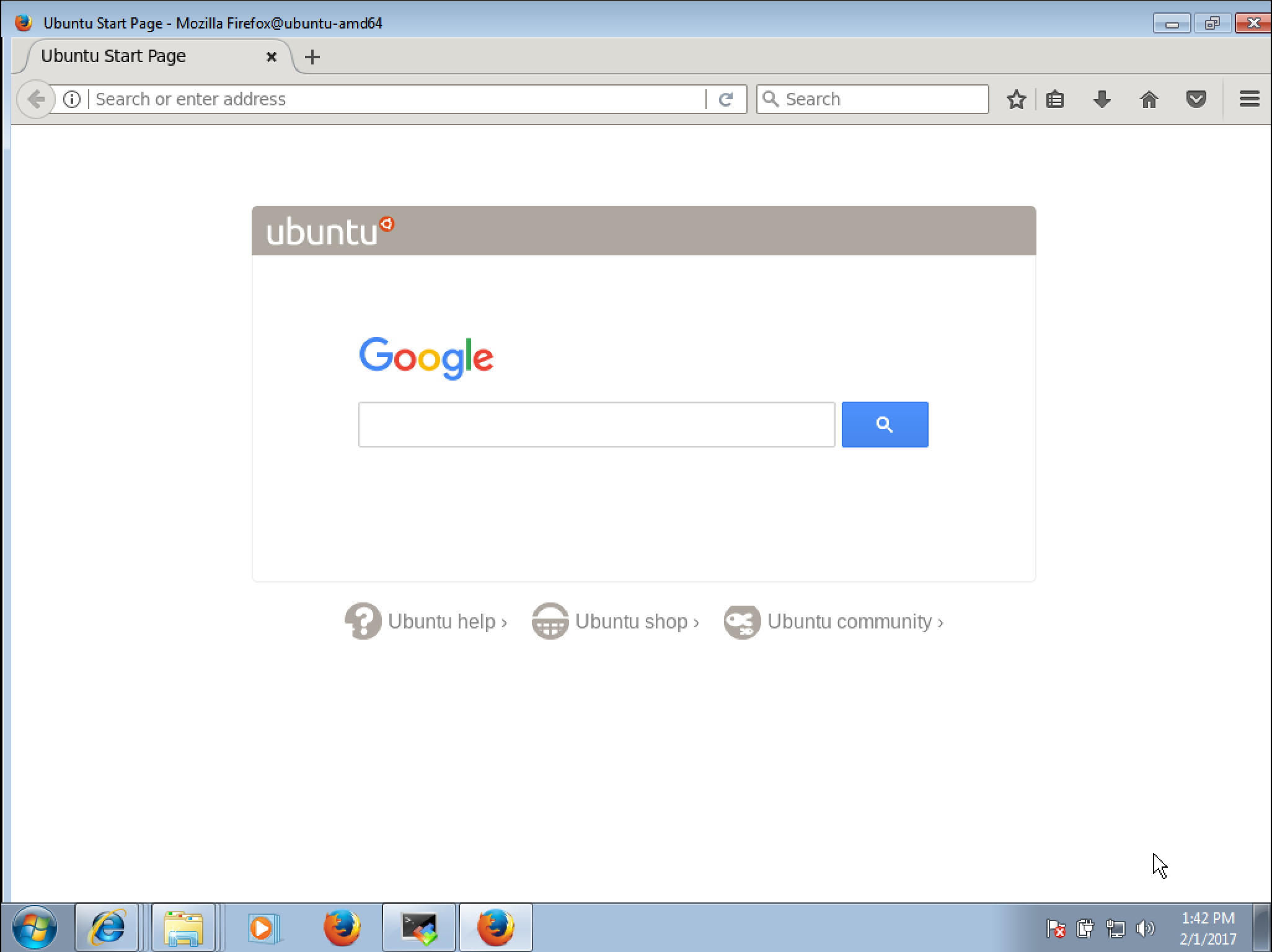
Ignore the errors which flow over your terminal screen, it's ok as long as you see the firefox screen starting.
-
The firefox start screen.
-
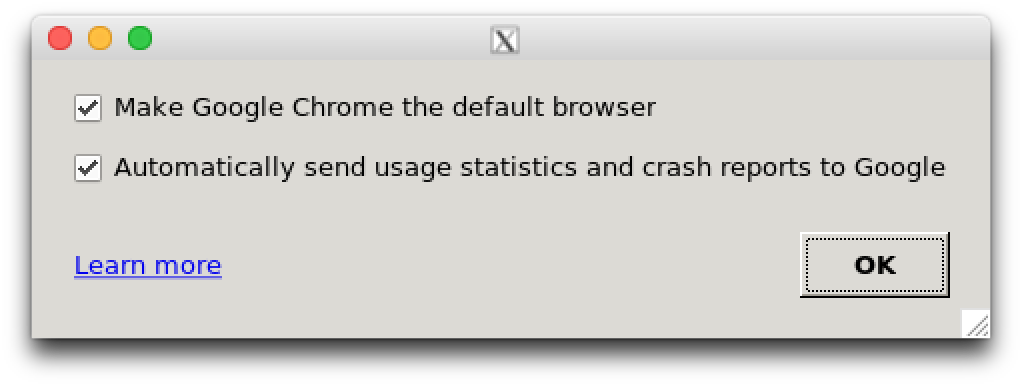
We can do the same for Google-Chrome. You activate chrome by accepting the following two options.
-
$
google-chrome - choose
OK
Run GUI tools on vaizrdemobox
One last remark about X-Windows Server and Windows and Mac. On Mac we can execute the scripts directly from the host. However to run convenient the commands we have to set the guest with the . ./set_execute_env.sh before and execute the commands with . ./ in front of the actual command. On Windows it is more convienant to start the SSH session from within MobaXterm. After logging on to the Ubuntu box we can simply execute the command. Since on the Vaizr Demo Ubuntu box the scripts are packaged in the ~/bin directory which has been added to the Path. In this chapter I will repeat the commands twice but after this chapter I will normally only show the host version.
- host ==> Mac, run command in terminal
- guest ==> Windows, run command in MobaXerm terminal
- host $
. ./firefox -
guest $
firefox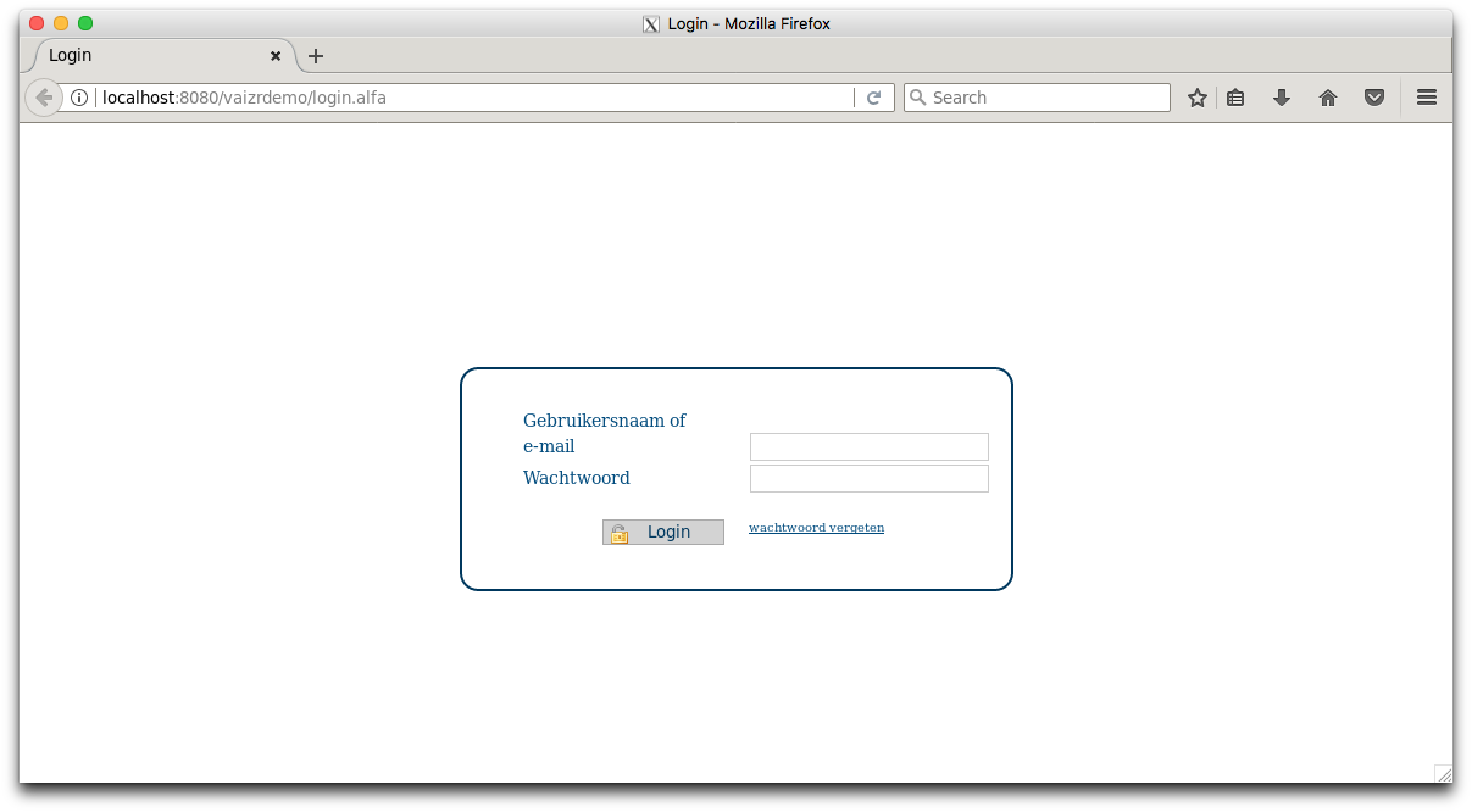
If everything is alright you should see the above screen. You can also use any browser on your Windows desktop directly
URL http://localhost:8080/vaizrdemo
You can login with:
username : nanne
password : nanneo
Click Here to return to Getting Started
Click Here to continue with Generate Screens